
What is it?
The Click Banner works by uploading a smaller image (1920 x 480) to the card that can then link users to external sites or to other cards within your Engagement Hub.Watch it come to life
How do I build one?
- Step 1: Add a Click Banner to your Hub.
- Step 2: Edit your card settings
- Step 3: Publish your card
Step 1: Add a Click Banner card to your Hub
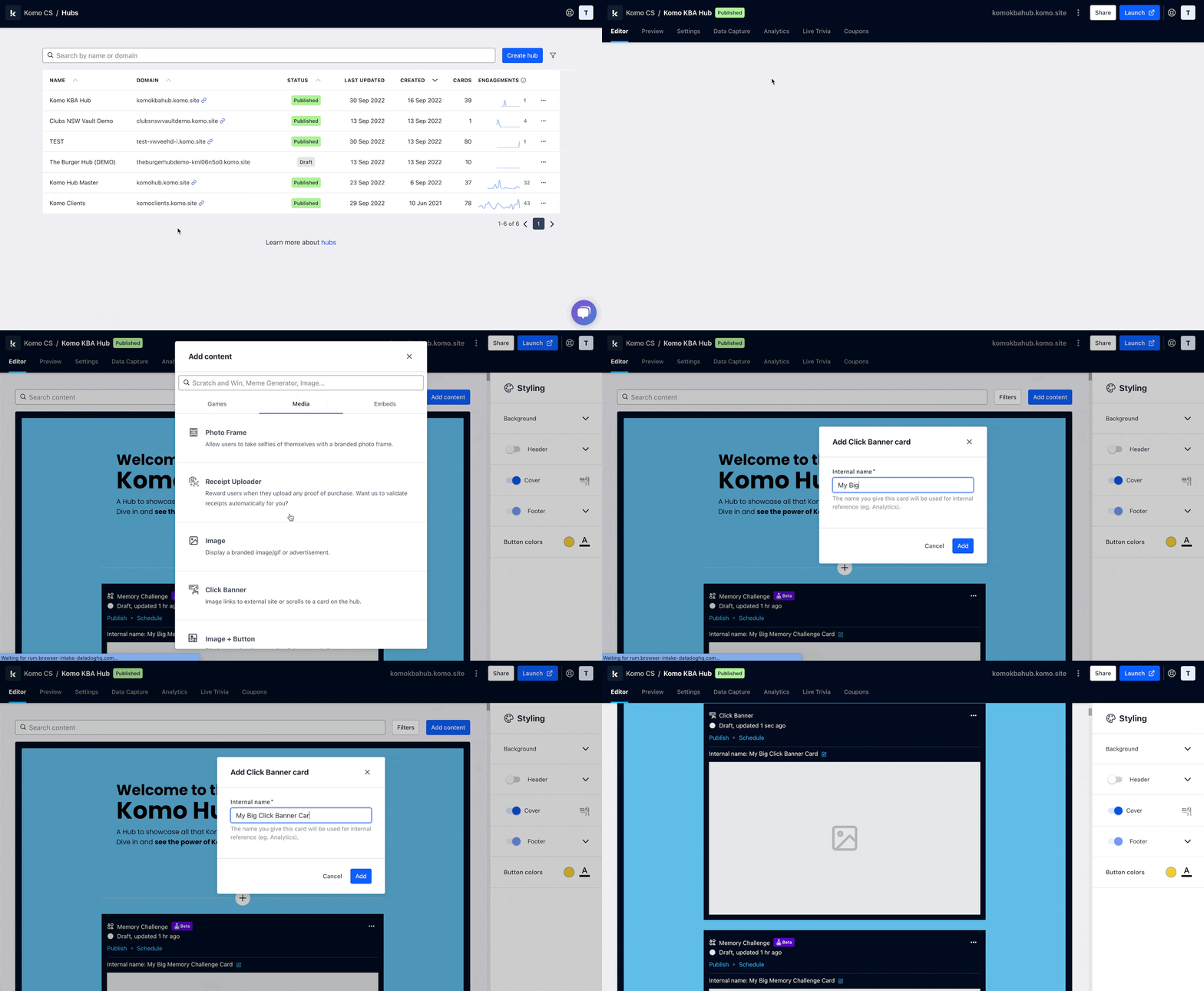
- Navigate to your Engagement Hub.
- Once there click Add Content, from here select Media and then Click Banner.
- You will then see your new card has been added to your Hub.
Step 2: Edit your card settings
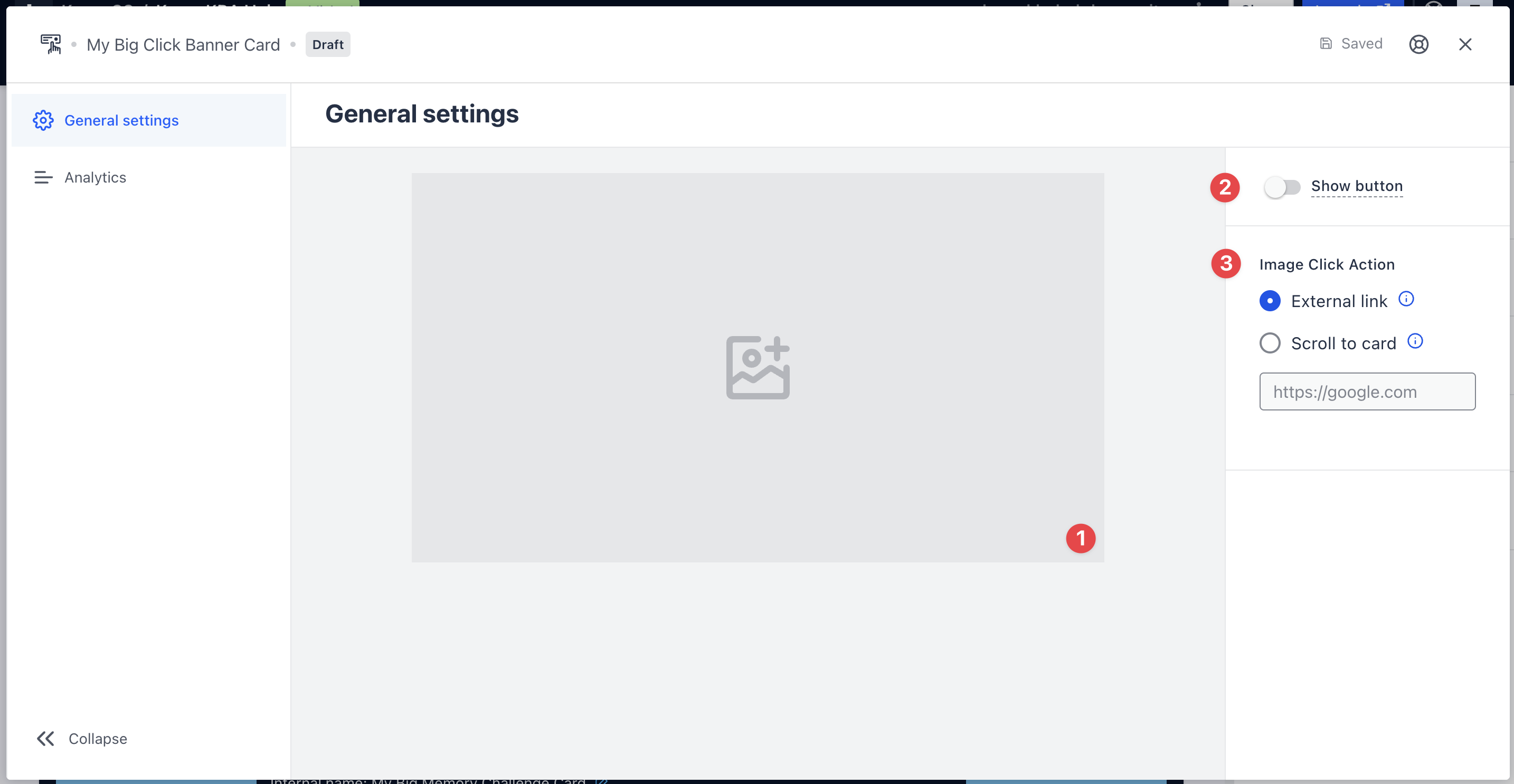
- Clicking on the Click Banner will open the editing module.
- (1) Here is where you’ll upload your image.
- (2) You have the option to enable a call-to-action bar.
This will only be visible if an external link has been attached.
- Here you can have the image link to an external site or scroll to another card.
Step 3: Publish your card
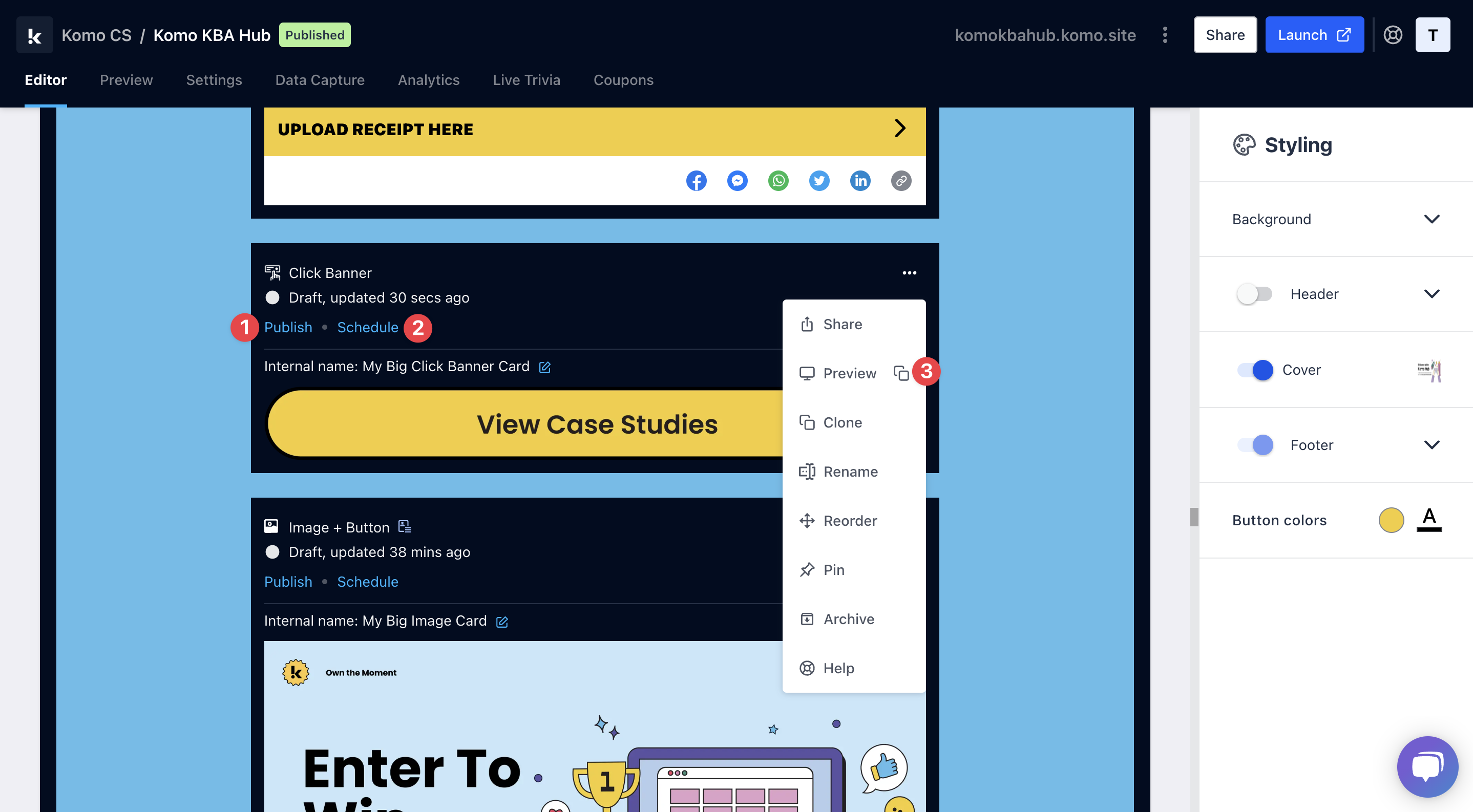 Once you’ve completed all of these steps, played around with your card and are happy with all the aspects of your card, it’s time to get your card live!
- (1) Publish your card manually and instantly for the world to see.
- (2) Schedule your card to be published and unpublished at set dates and times.
- (3) Click on … to Preview and interact with the card on the front end from a user’s perspective before publishing it. See how to test your card here.
All competition entries will be recorded and will impact the card analytics.