
What is it?
You can create and assign custom card tags to your cards. Assigning tags to your cards allows you to group all the content for specific campaigns together for easy and in-depth filtration. This feature helps you organize your cards by campaign, theme, or any other categorization system that works for your organization.How do I use it?
- Step 1: Navigate to your Hub
- Step 2: Create a Tag
- Step 3: Assign the tags
- Step 4: Filter the card view by Tags
Step 1: Navigate to your Hub
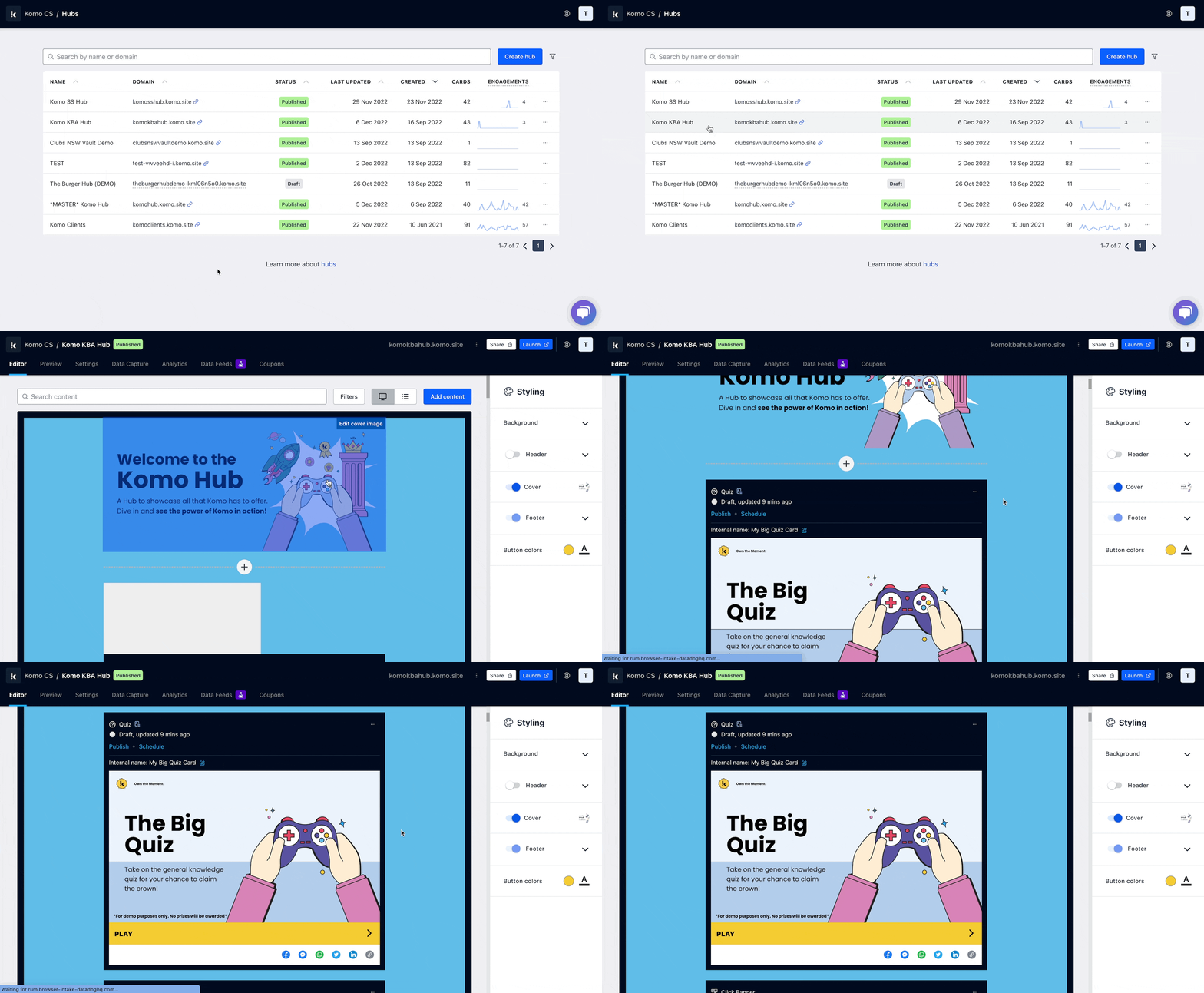
- Navigate to your Engagement Hub
- Scroll to the card you want to add a custom tag to
Step 2: Create a Tag
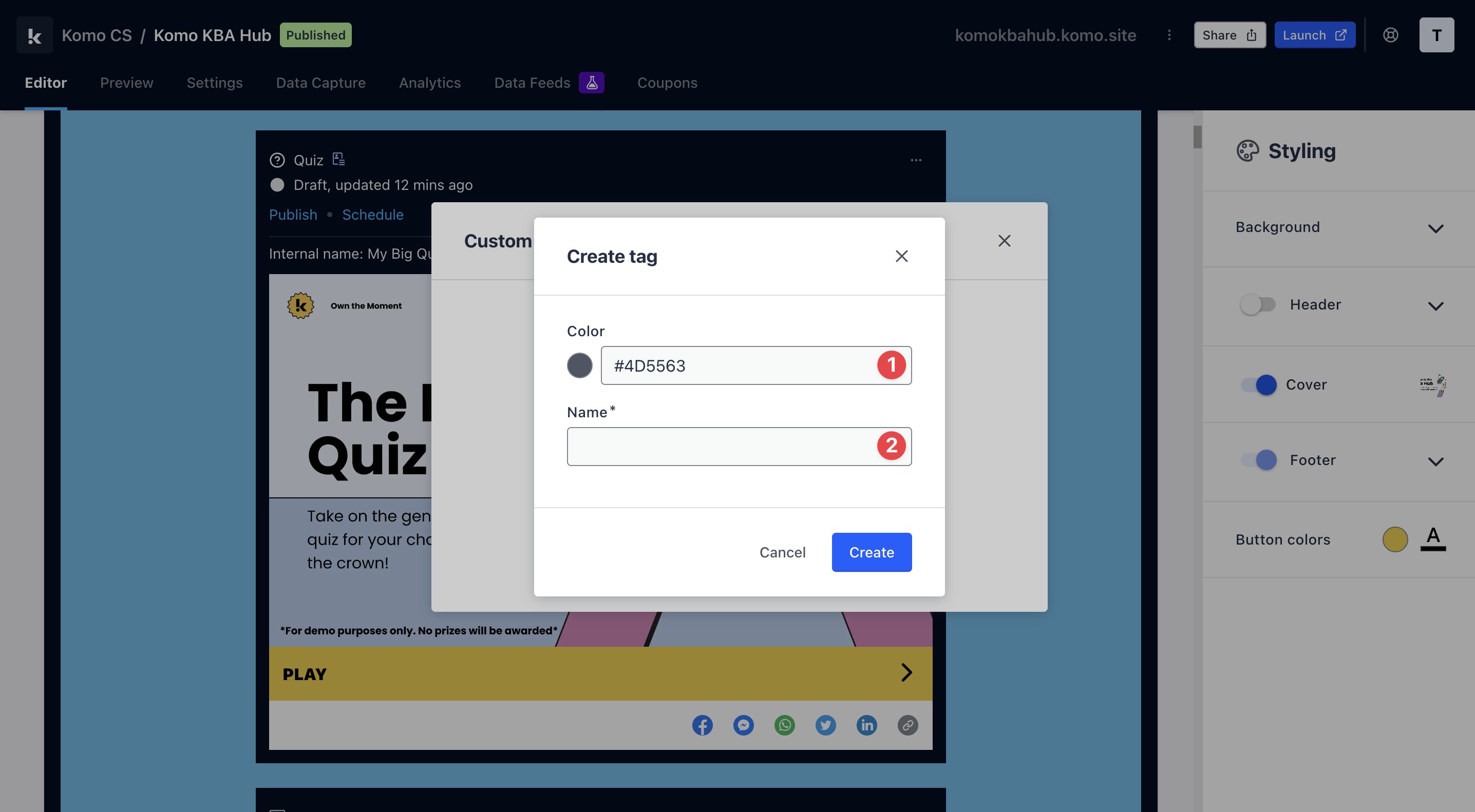
- Click on … located on the top right of the card
- Select Custom tags and then click on Create and assign tag
- (1) Here you can select a colour for your tag
- (2) Enter a name for your tag. E.g. Christmas 2022, and then click on create
Step 3: Assign the tags
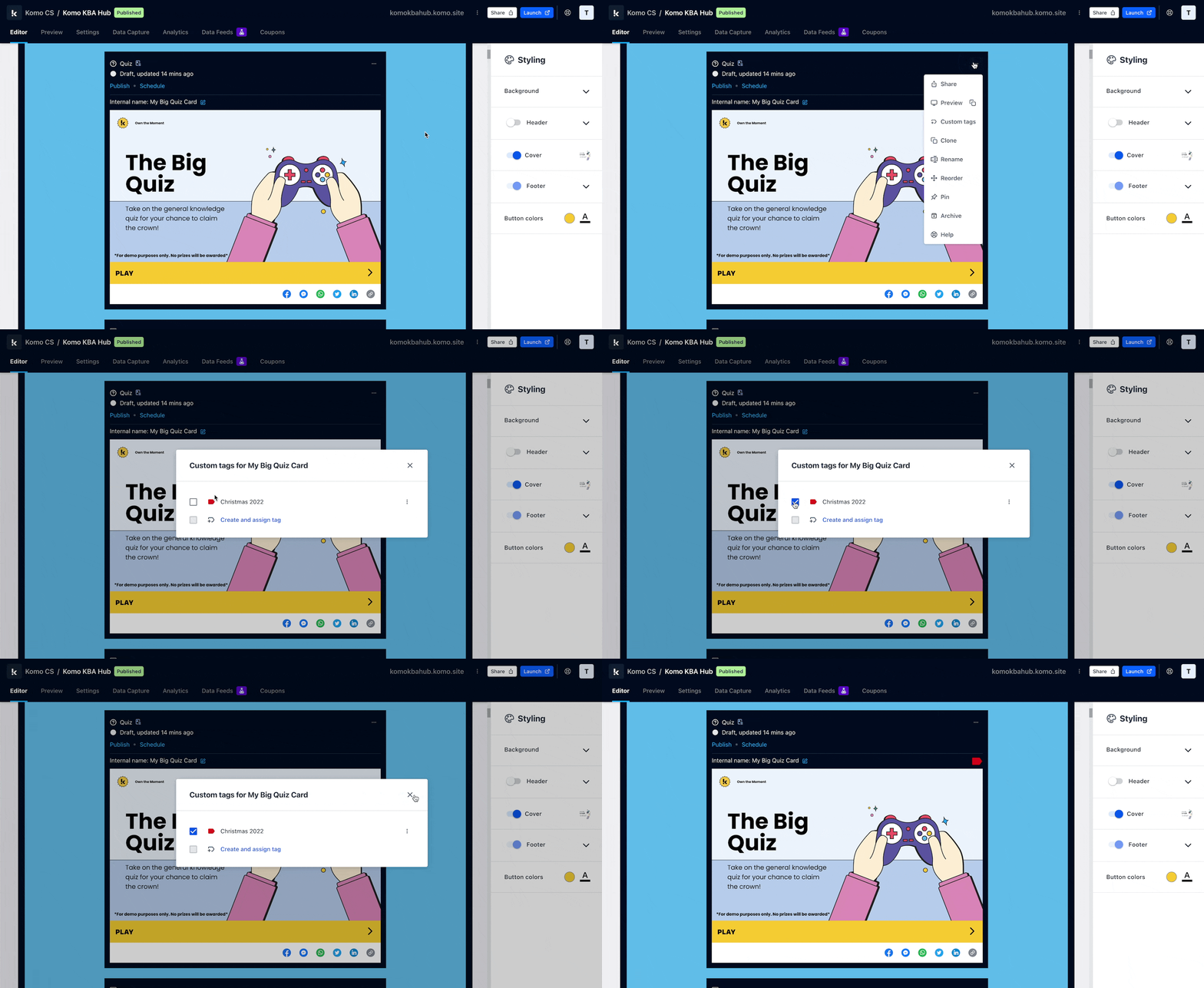
- Click on … located on the top right of the card
- Select Custom tags and then mark the box of the tag you wish to attach to the card
Step 4: Filter the card view by Tags
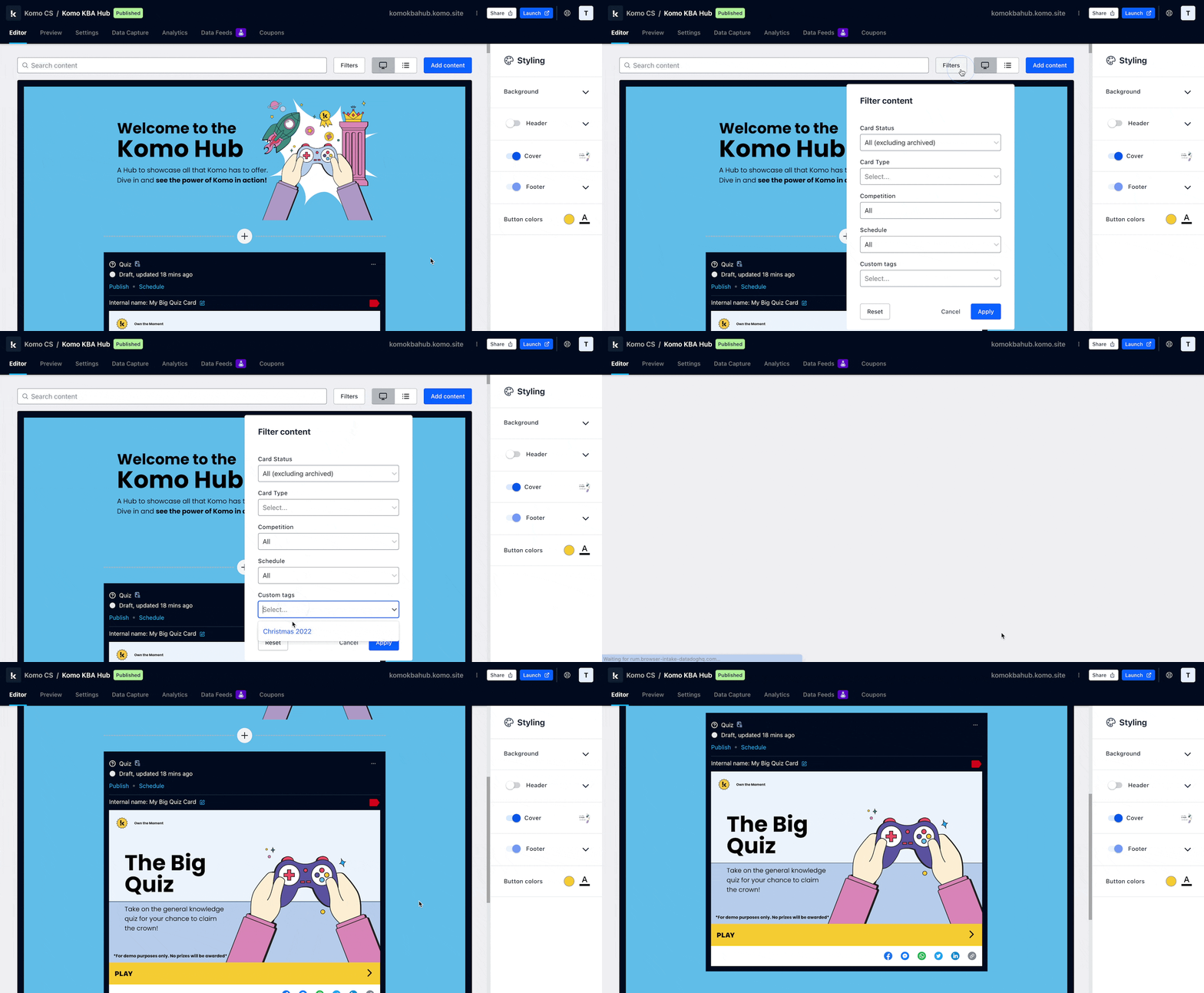
- Click on Filters at the top of the Hub
- Select the Custom tag you want to filter by and then click on Apply