Writing your MC Script
A guide on how your MC approaches a Live Trivia in-venue
Getting Ready for the Live Trivia
You can have your Live Trivia on the big screen in a matter of minutes with simply one HDMI cable and a laptop.We highly recommend using two laptops! Prior to the Live Trivia starting, we recommend getting the relevant screens organised in different tabs across two laptops.
Laptop 1 - Shared on in-venue screens
This laptop will be connected to the in-venue screens and viewable to attendees.- The Holding Screen: This image is shown prior to the Live Trivia starting and should have a QR code included to allow attendees to scan to access your Hub and register for the live trivia.
- The Big Screen: The Big Screen link includes a Countdown Clock and displays the winner’s name on the in-venue screen (This will all sit on one URL and will update automatically as the game progresses).
- Live data feeds: Live data feeds automatically pull data from the Live Trivia and then present it in a fun and engaging way to improve the overall trivia experience.
If you are using live data feeds, which we highly recommend, have these screens open as well. To do this simply go to your trivia game, click on Live data feeds, using the … next to the feed select Preview. For a full explanation of how to set up live data feeds, click here.
Laptop 2 - To control the game
This computer is the one that you will use to start the trivia game and won’t be viewable to attendees- Live Trivia Game: If you’re planning on running your event during a halftime break or a time that is otherwise not locked in you will require another laptop to manage the starting and closing of your game. You should have your trivia game up and in the Control Panel tab ready to start your game. To this click on the Card’s Settings and then Control Panel.
For events, we recommend not scheduling your Live Trivia to account for delays that may occur for the event.
Running your Live Trivia
When you’re ready to run your Live Trivia, you should have the following tabs already open on one laptop; holding screen, big screen link and any live data feed you may have.On another laptop, you should have the Live Trivia game open and ready to start the game in the Control Panel tab. For a full demonstration of how to run your Live Trivia in-venue, check out the video below.
Step 1: Registrations
The first thing that should be broadcast on the in-venue screen is the holding screen. This should be done whilst the MC is encouraging people to register for the game by scanning the QR code on-screen.On your other laptop, you should be sitting in your Live Trivia game in the Control Panel tab.
Example of a Holding Screen:
Live Trivia Control Panel: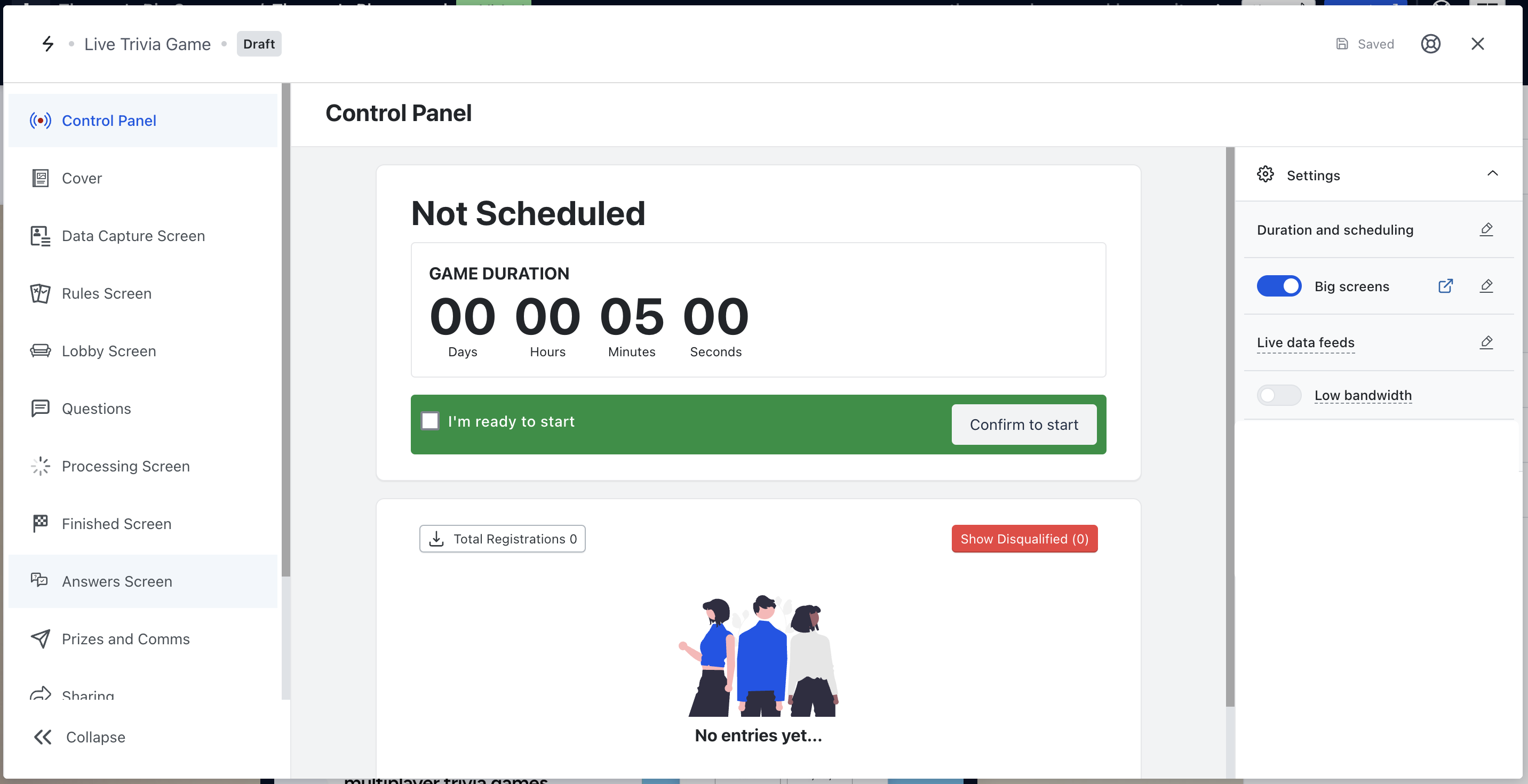
Step 2: Start the Game
Once you’re happy with the number of registrations for the Live Trivia (which you can see in the Control Panel tab), click I’m ready to start the game and then Start. Following this immediately switch the in-venue screen over to the Big screen window, the clock should now be counting down.. Example of the Game in Progress Big Screen: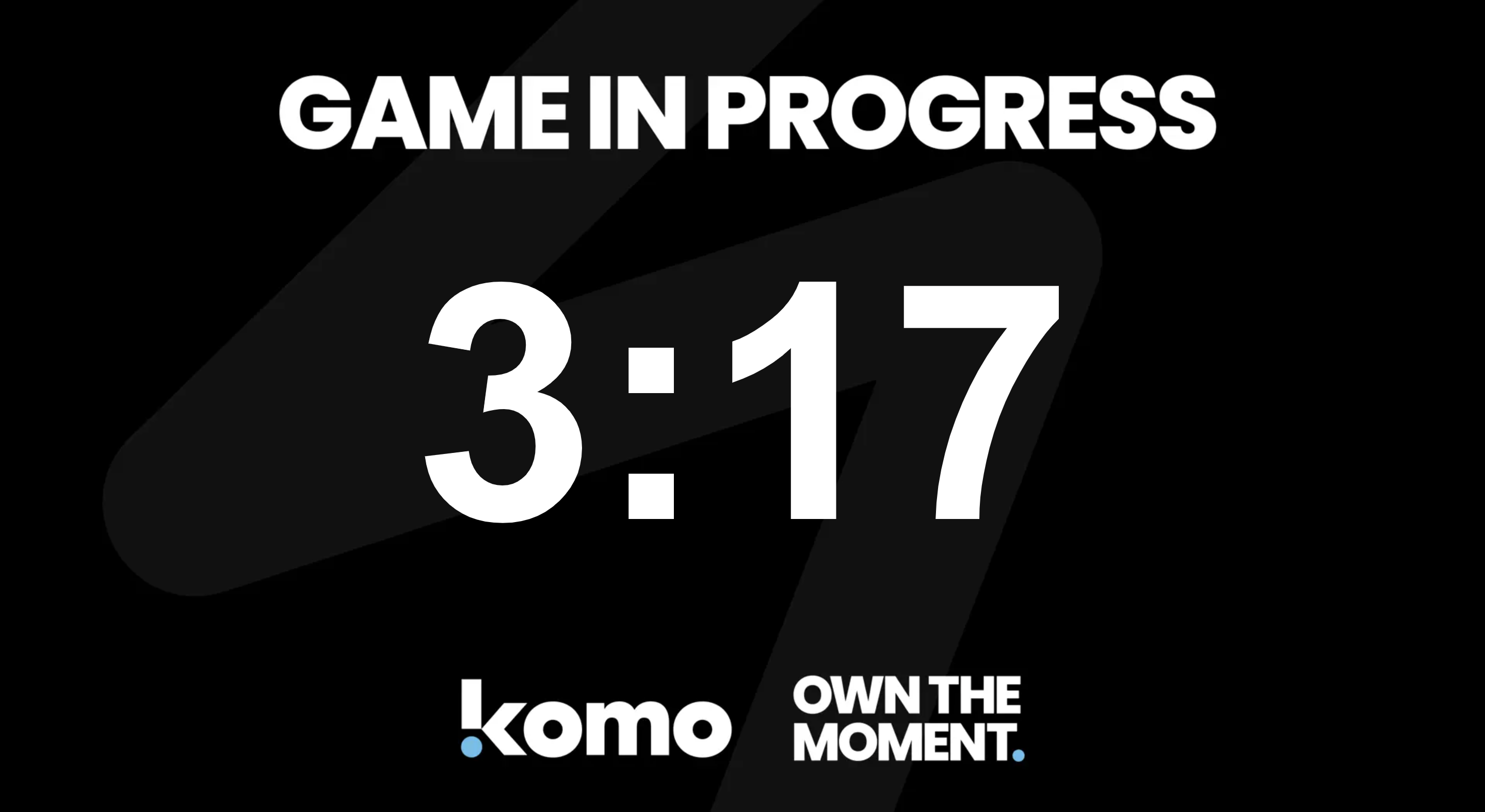
Step 3: Live Data Feeds
At this stage, the trivia game is in progress. From here cycle through the Live data feeds tabs for the best trivia experience, occasionally switching back to the big screen screen. At this point, the MC should be hyping up the crowd. When the countdown is in the final 10 seconds return back to the Big screen window.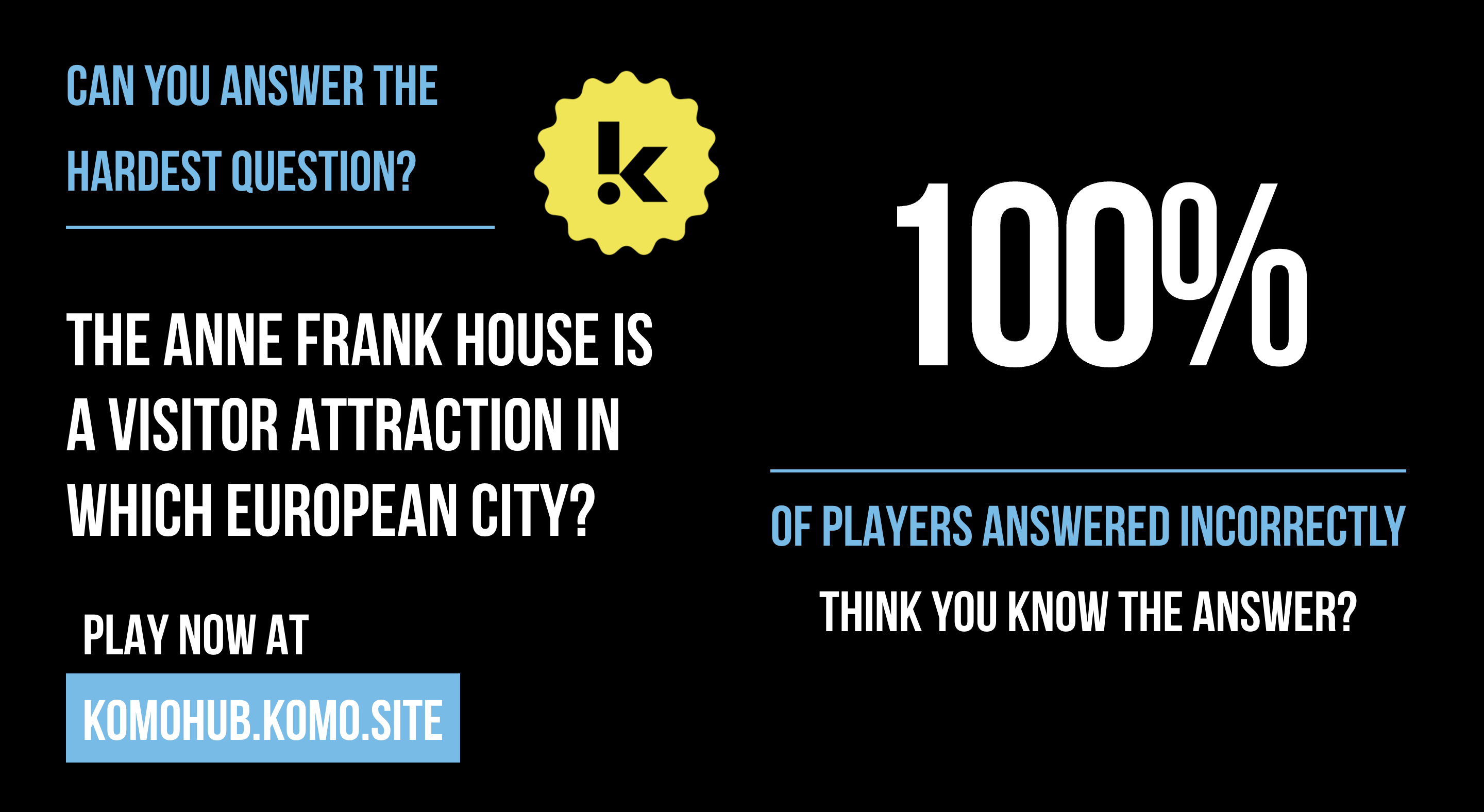
Step 4: Processing Screen
Once time has run out for your Live Trivia, the Big screen tab will automatically display the processing screen. This is when you will need to award prizes in the Control Panel tab of your second laptop. To announce and award the winners, click on Award prizes at the top of the Control Panel. Example of the Processing Big Screen:
Step 5: Winner Screen
Once you have awarded the prizes, the big screen will then automatically switch to display the winner’s name. Keep this name up on the screen so the MC can talk to it.