Please note that the information and advice that Komo provides regarding permits, terms and conditions, privacy policies or any other matter of this nature is of a general basis only, and we suggest you seek your own legal advice specific to your needs.
What is it?
Including terms and conditions alongside your competitions allows you to outline the rules and guidelines that one must comply with to participate in the given competition, while also covering the rights, responsibilities, and expectations of both you as the provider and the end user. Ready to add terms and conditionsto your Engagement Hub? Follow these simple steps.
How do I do it?
Step 1: Download T&Cs template
Download the relevant terms and conditions template by clicking on the banners below
Step 2: Update T&Cs document
After downloading your terms and conditions template, please read through the document, update any of the highlighted areas, and save the document in a .PDF format.
Step 3: Upload your T&Cs
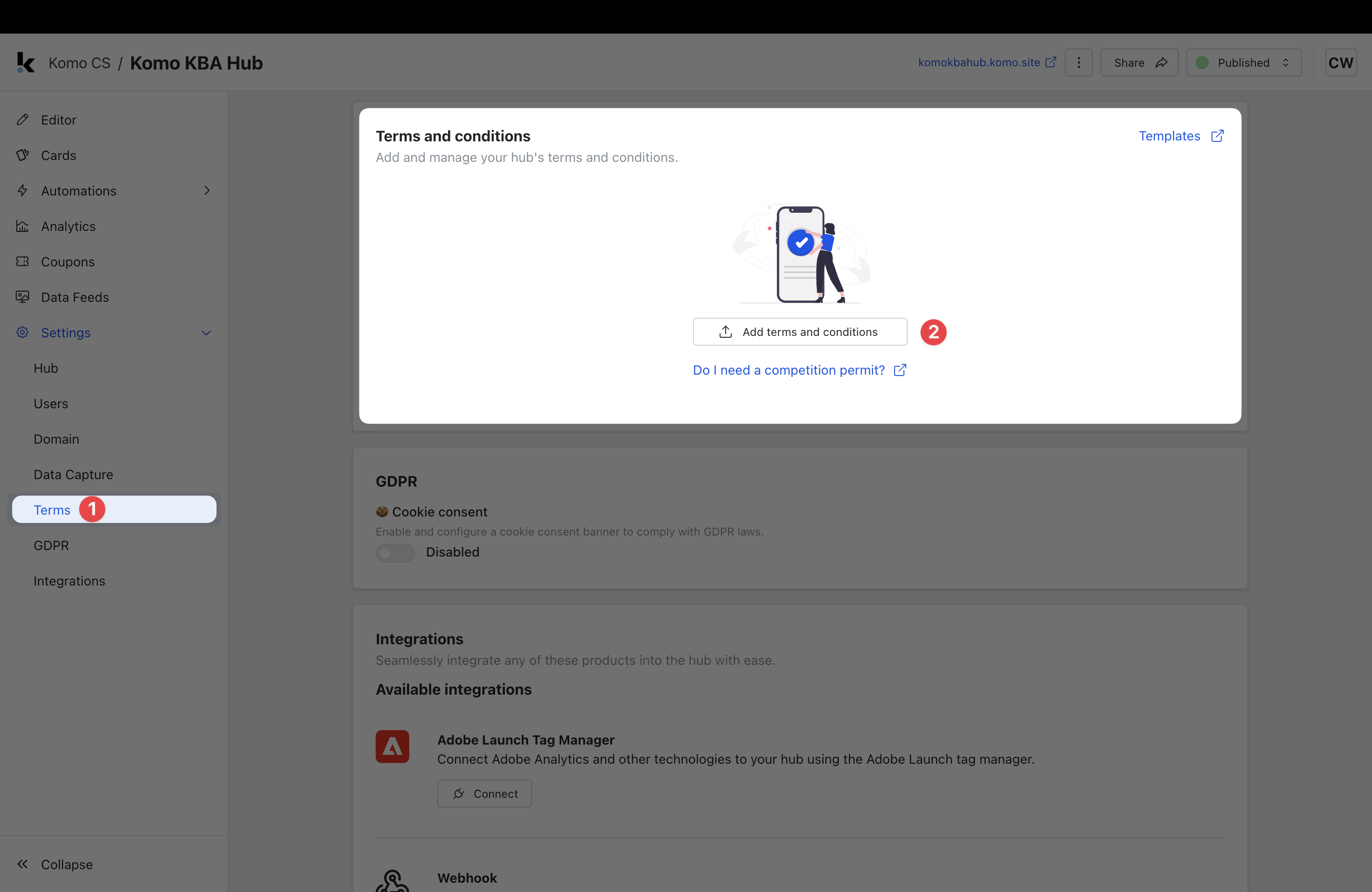
- (1) Navigate to your Hub’s settings and find the Terms tab.
- (2) Click Add terms and conditions.
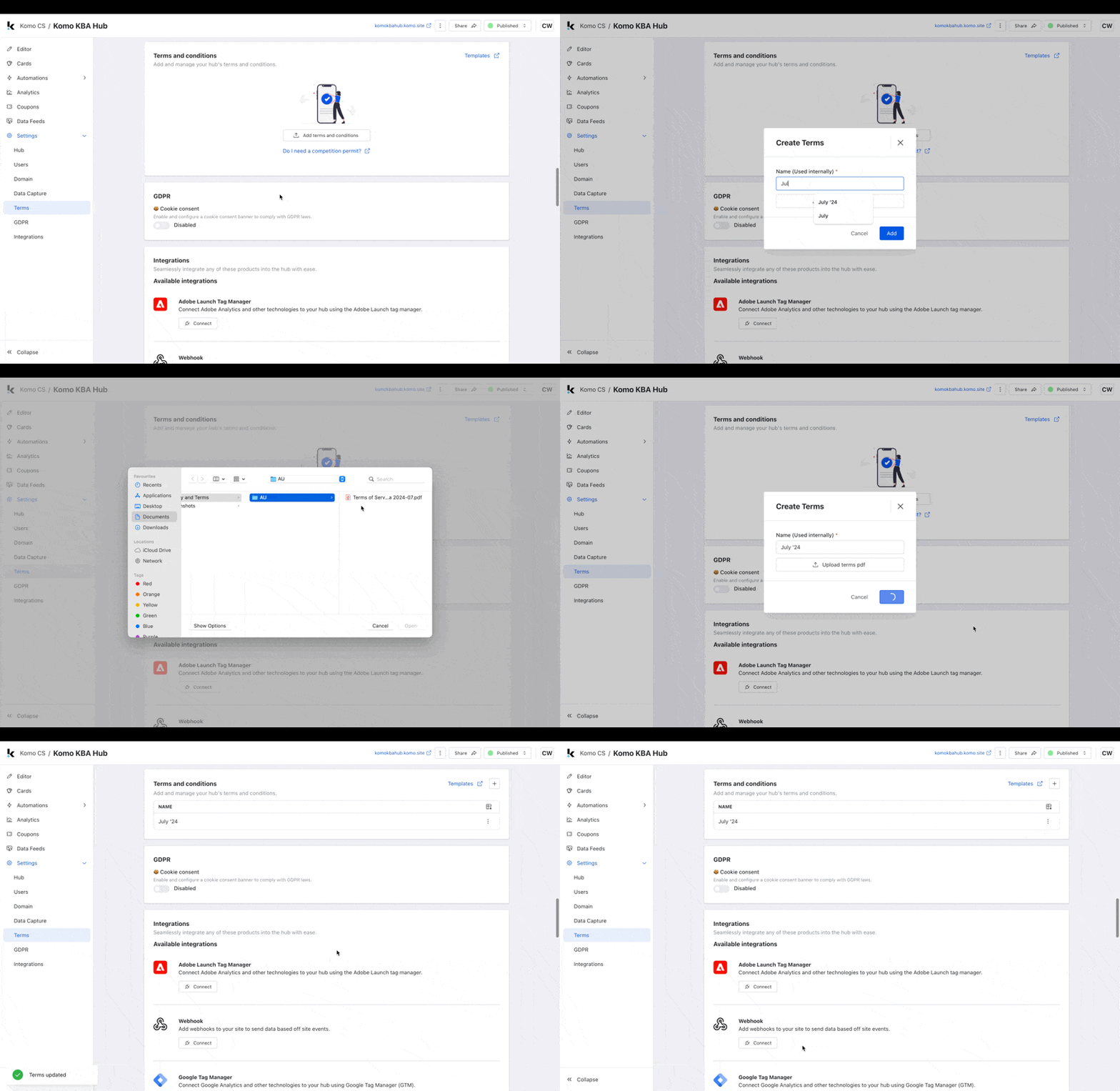
- Provide an internal name for your T&Cs.
- Click Upload terms .pdf. Here you will select your .PDF file from your computer’s file drive.
- Click Add.
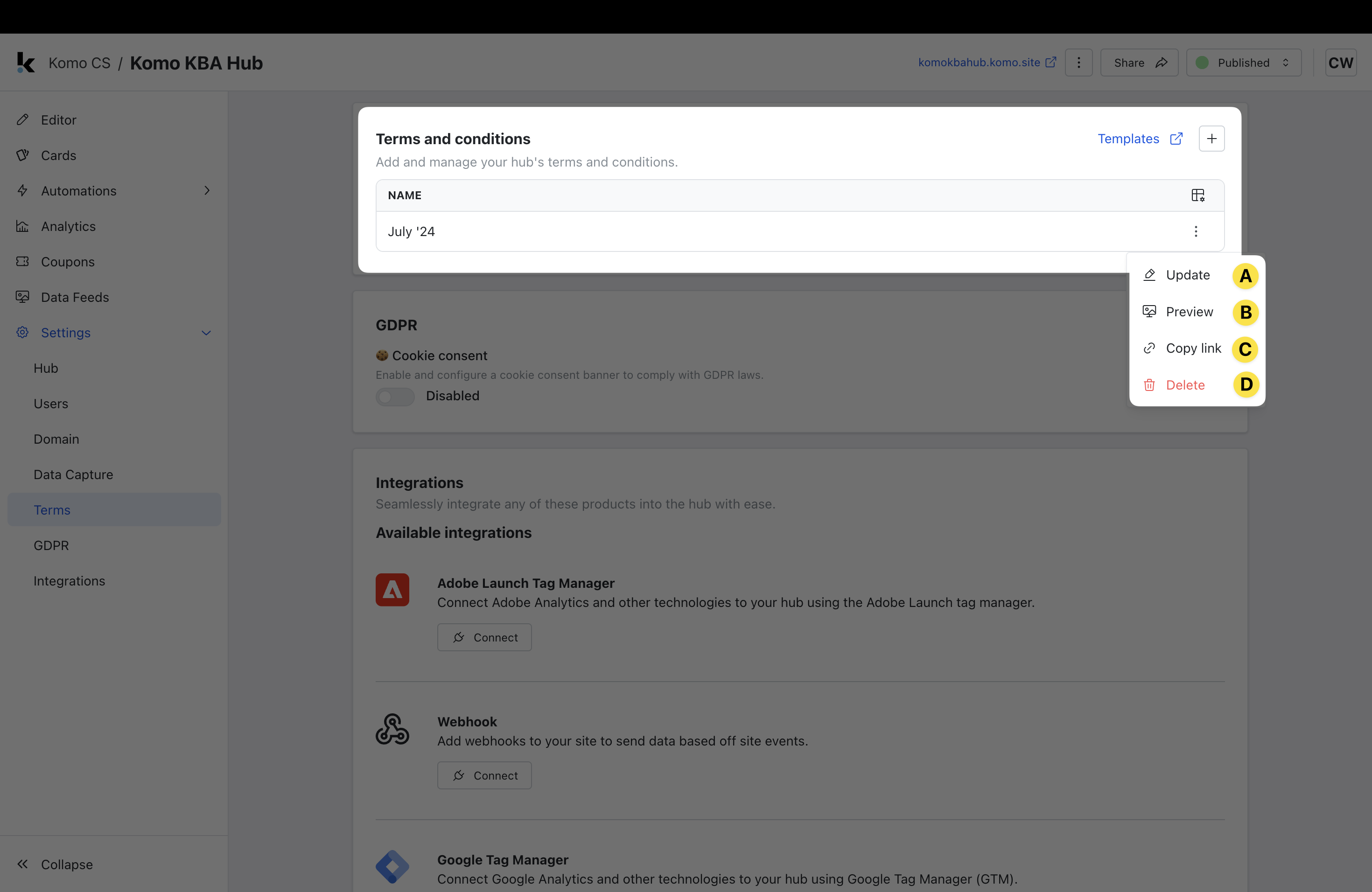 The 3 dots next to your T&Cs also give you some alternative options:
- (A) Update the name or file attached.
- (B) Preview your T&Cs.
- (C) Copy link to your T&Cs to your clipboard.
- (D) Delete your T&Cs.
Step 4: Attach T&Cs to your card
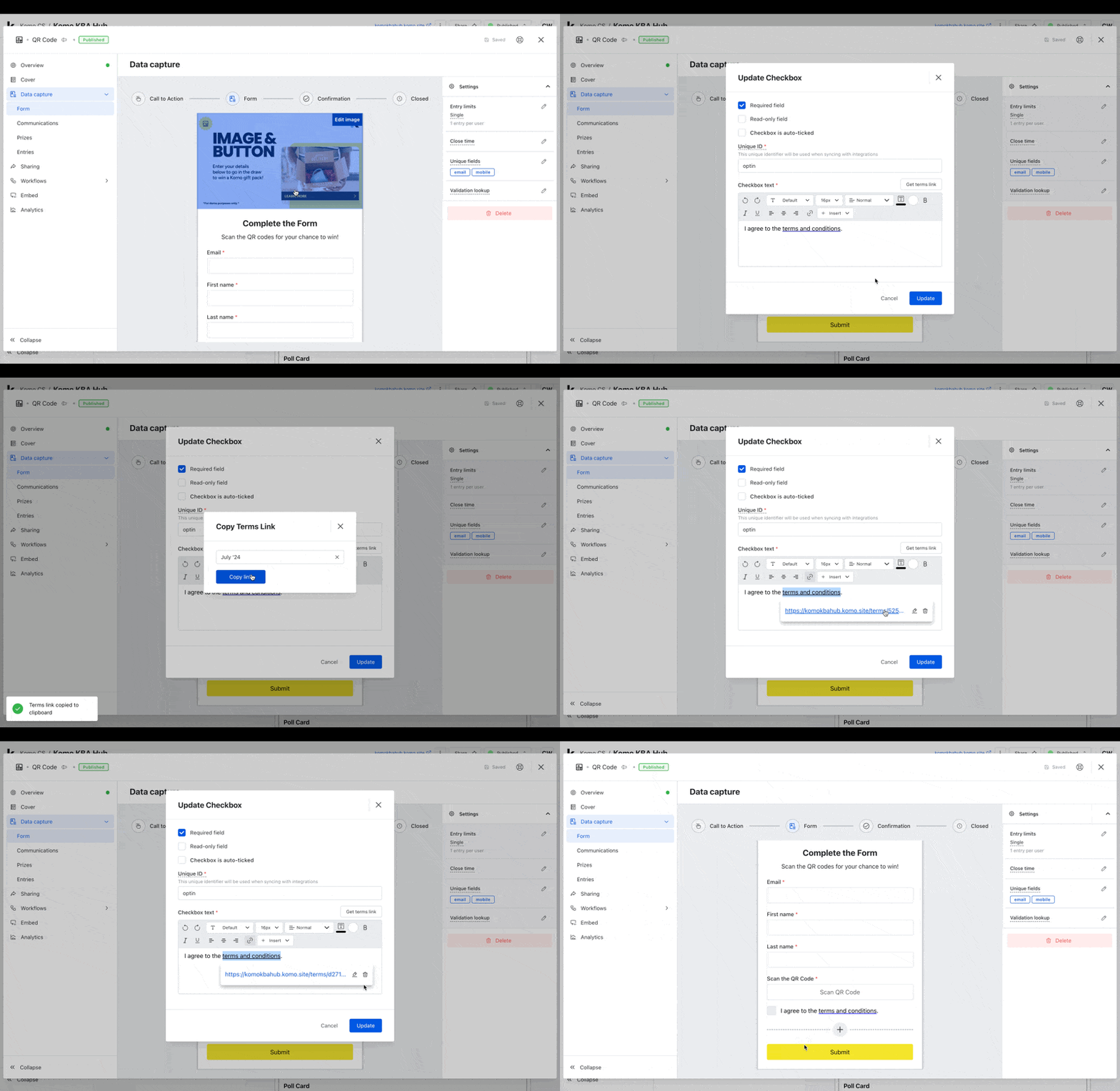
- After uploading the terms and conditions to your hub you’ll need to add them to your card.
- To do this go to your card and click on Data Capture, Form, Terms and Conditions field followed by Edit.
- In the opt-in editor, click Get terms link.
- Select your T&Cs from the dropdown.
- Click Copy link and exit the modal.
- Highlight the terms and conditions text, click on the link button.
- Click the pencil icon, paste in your terms link, and click the tick button.
- Click Update.
FAQ
Do I need to host my T&Cs on Komo?
No. If you would prefer to host your Terms & Conditions elsewhere you can simply link directly to that file/path when adding the hyperlink in the opt-in editor (Step 4).
I’ve made changes to my T&Cs, how do I update it?
If you have updated your terms and conditions, you can simply click the 3 dots next to your T&Cs as shown in Step 3, and click Update.